Integrating Asana with Blitzit
The Blitzit-Asana integration helps you turn your Asana projects into actionable tasks in Blitzit, so you can plan and execute without switching tools and losing focus.
Setting Up the Integration
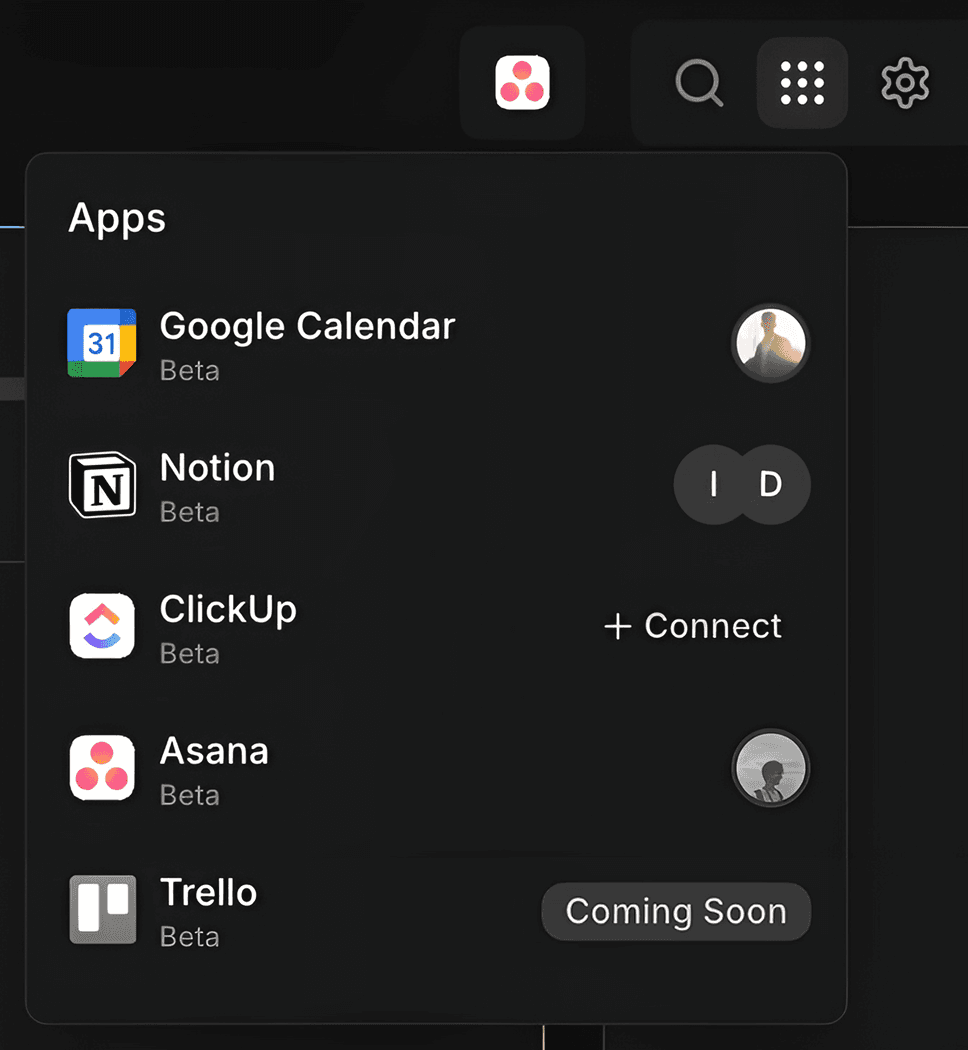
Open Blitzit and go to the Integrations section.
Find Asana in the list and click + Connect.
Log in to Asana and authorize Blitzit to access your account.
Select the Blitzit list you want to link to Asana, then click Link now.
Once connected, the Blitzit list will show an Asana logo, indicating it’s synced.
Note: Each list can have only one Asana account linked at a time.
Adding Asana Projects to Blitzit
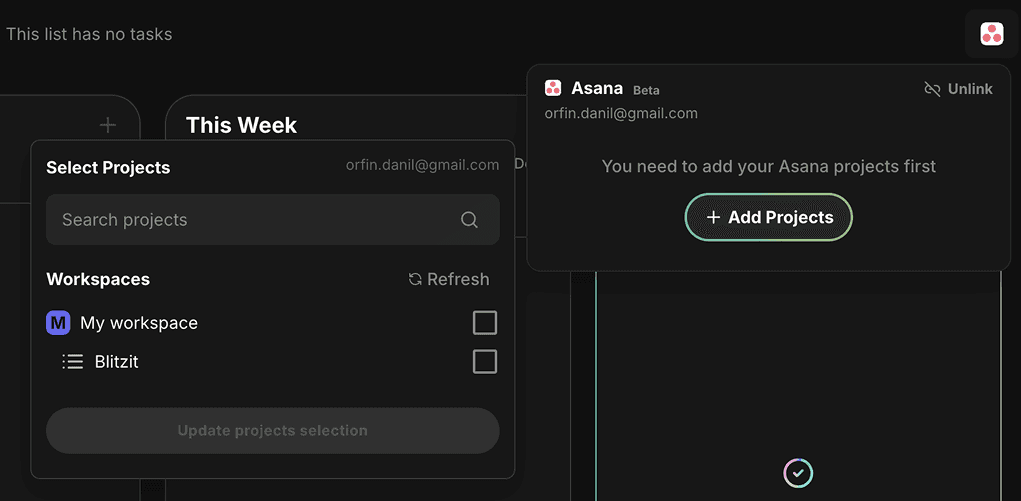
Click the Asana icon in your synced Blitzit list.
Select Add Projects to choose which Asana workspaces or projects to pull tasks from.
Click Update projects selection to confirm.
Note: you can add or remove projects anytime by clicking Update Projects in the integration's Settings.
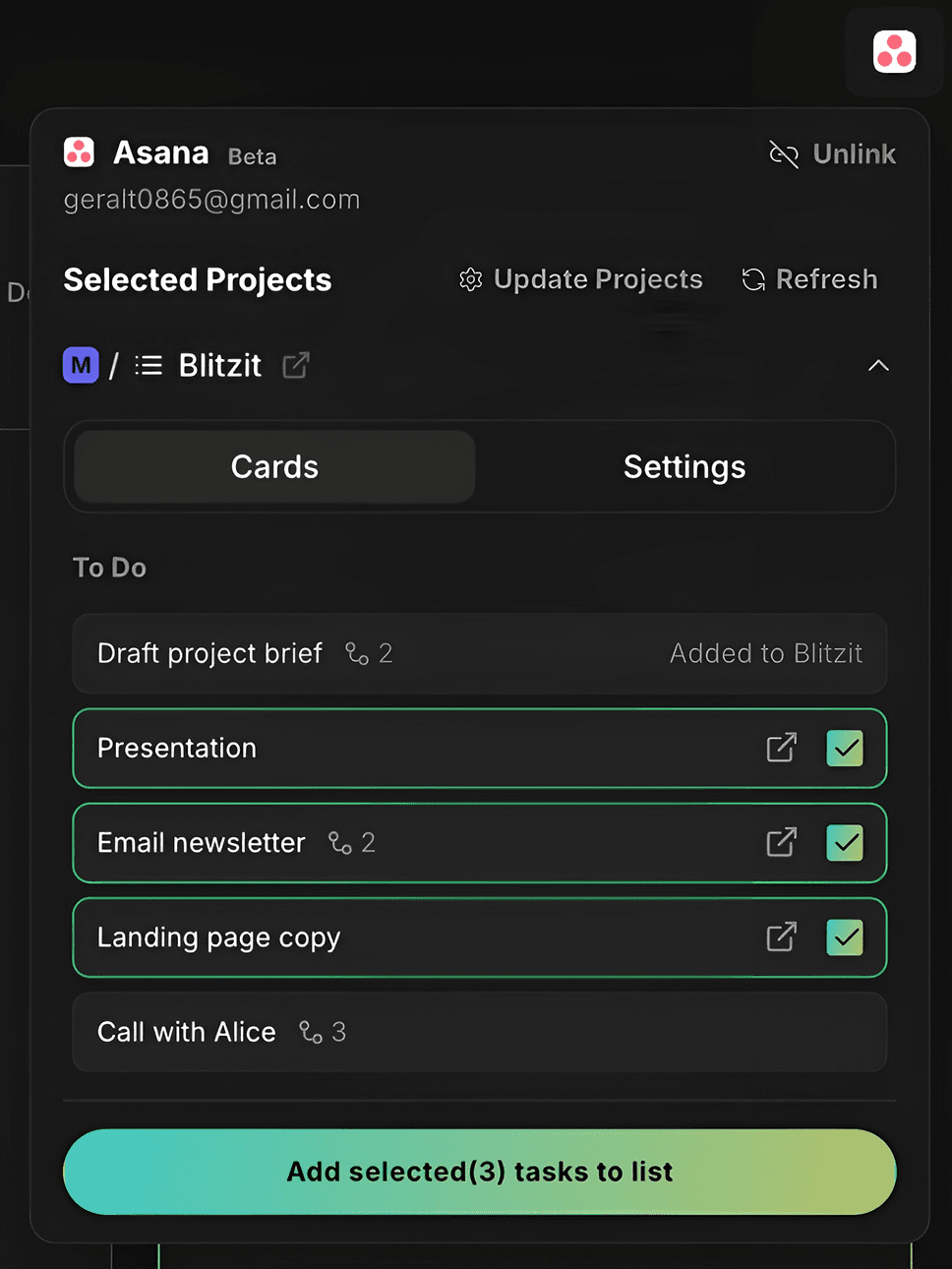
Adding Asana Tasks in Blitzit
Your Asana tasks appear in the Cards tab.
To add a task to your Blitzit list:
Select the task.
Click Add selected tasks to list.
Blitzit automatically places tasks into columns based on their dates:
Task Date | Blitzit Column |
|---|---|
No date or beyond this week | Backlog |
Scheduled for this week | This Week |
Scheduled for today | Today |
How Syncing Works
Blitzit supports full two-way synchronization with Asana for supported actions and fields.
Updates to titles, subtasks, notes, dates, task completion, and deletion made in either app automatically sync to the other.
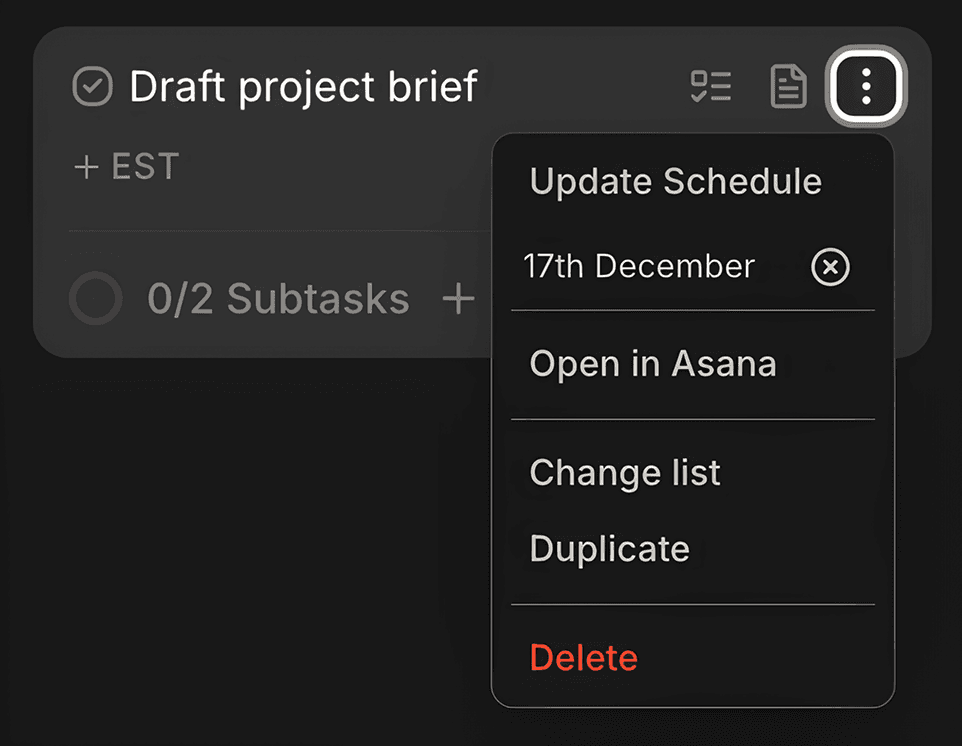
Editing Synced Tasks
From a synced task’s expanded menu, you can:
Adjust the schedule
Open the task directly in Asana
Move it to another Blitzit list while keeping the sync
Duplicate the task (duplicated tasks won’t sync with Asana, allowing you to create variations or test changes safely).
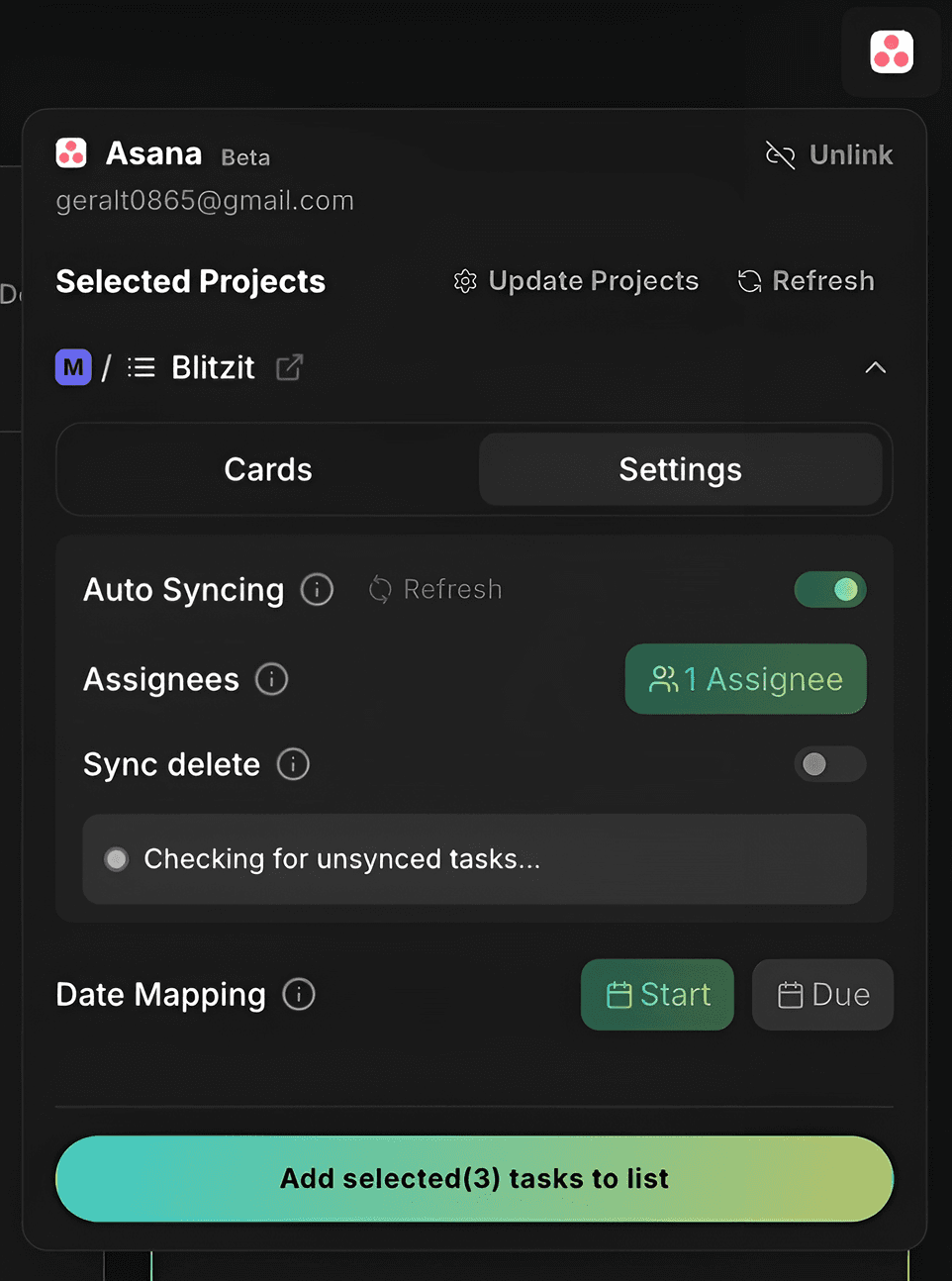
Adjusting Your Integration Settings
Go to Settings to customize your Asana sync:
Unlink: Disconnects Asana from Blitzit. Existing tasks stay in Blitzit but stop syncing.
Refresh Tasks: Manually pull updates from Asana.
Update Projects: Add or remove Asana projects.
Auto Sync
When enabled, Blitzit automatically checks for new Asana tasks and adds them to the list.
Assignees
Choose whether to sync tasks assigned to specific people. You can also include unassigned tasks.
Sync Delete
If enabled:
Deleting a task in Blitzit also deletes it in Asana.
Deleting a task in Asana only unlinks it from Blitzit.
Date Mapping
Select whether Blitzit should use the Start date or Due date from Asana to schedule tasks.
Subtasks
Choose whether Asana subtasks appear inside parent tasks or as separate tasks in Blitzit.
Troubleshooting
If you encounter any bugs or issues, click the Blitzit logo in the top-left corner of any Blitzit webpage to connect with our support team.