Integrating IFTTT with Blitzit
This integration lets you send tasks from other apps to Blitzit automatically using webhooks via IFTTT.
Setting Up the Integration in Blitzit
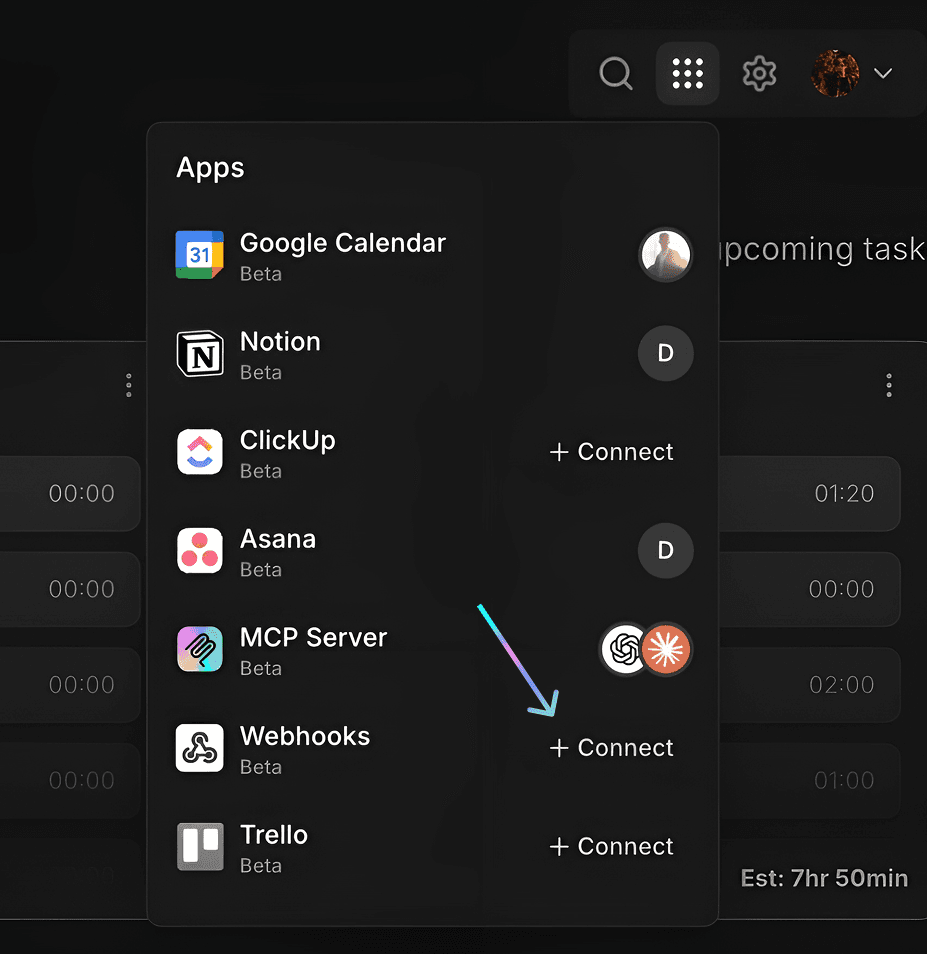
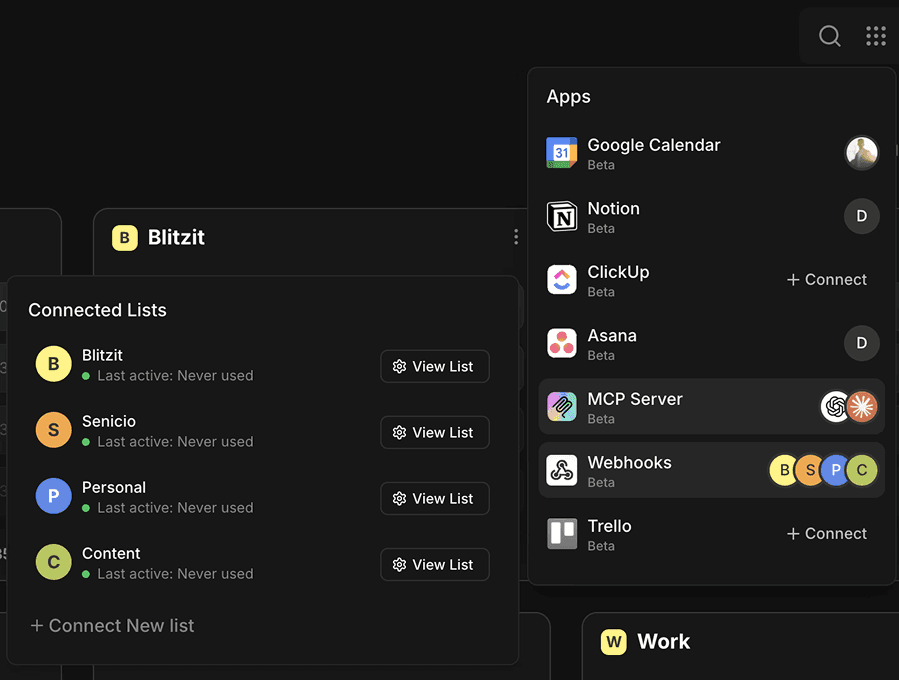
Go to Integrations (⋮⋮⋮ button on the top right), then select Webhooks.
Select the lists you want to connect.
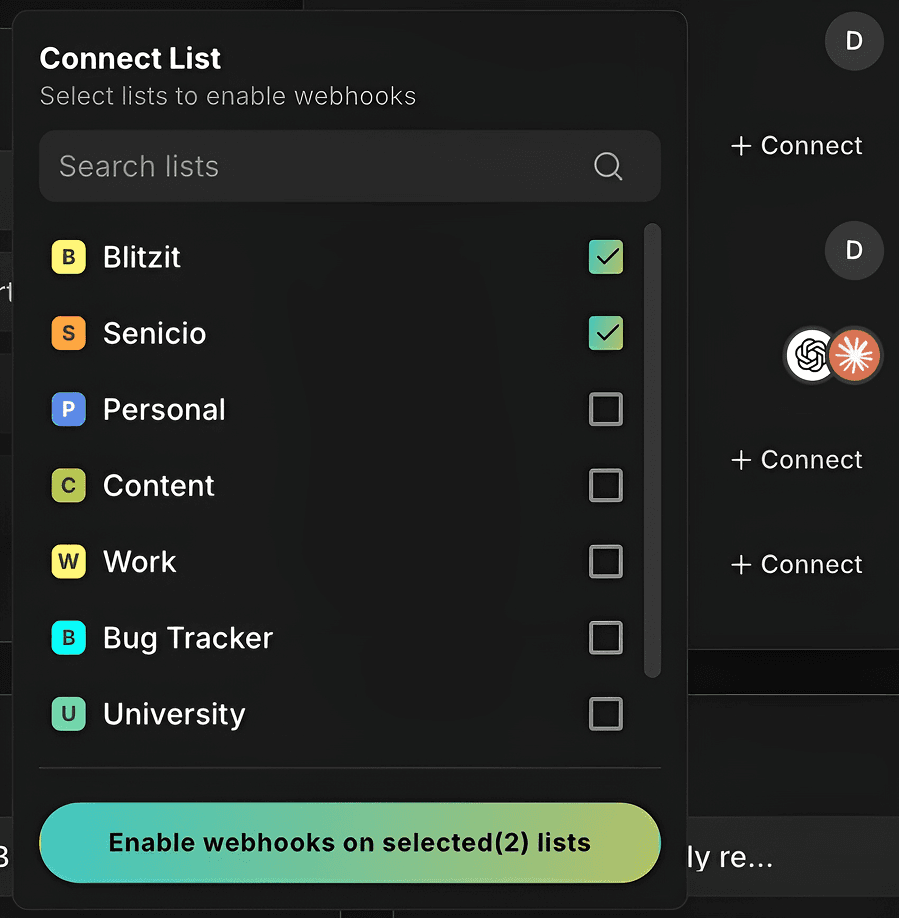
Click Enable webhooks on selected list(s) to confirm.
Open any connected list and click the Webhooks icon (top right) to view settings.
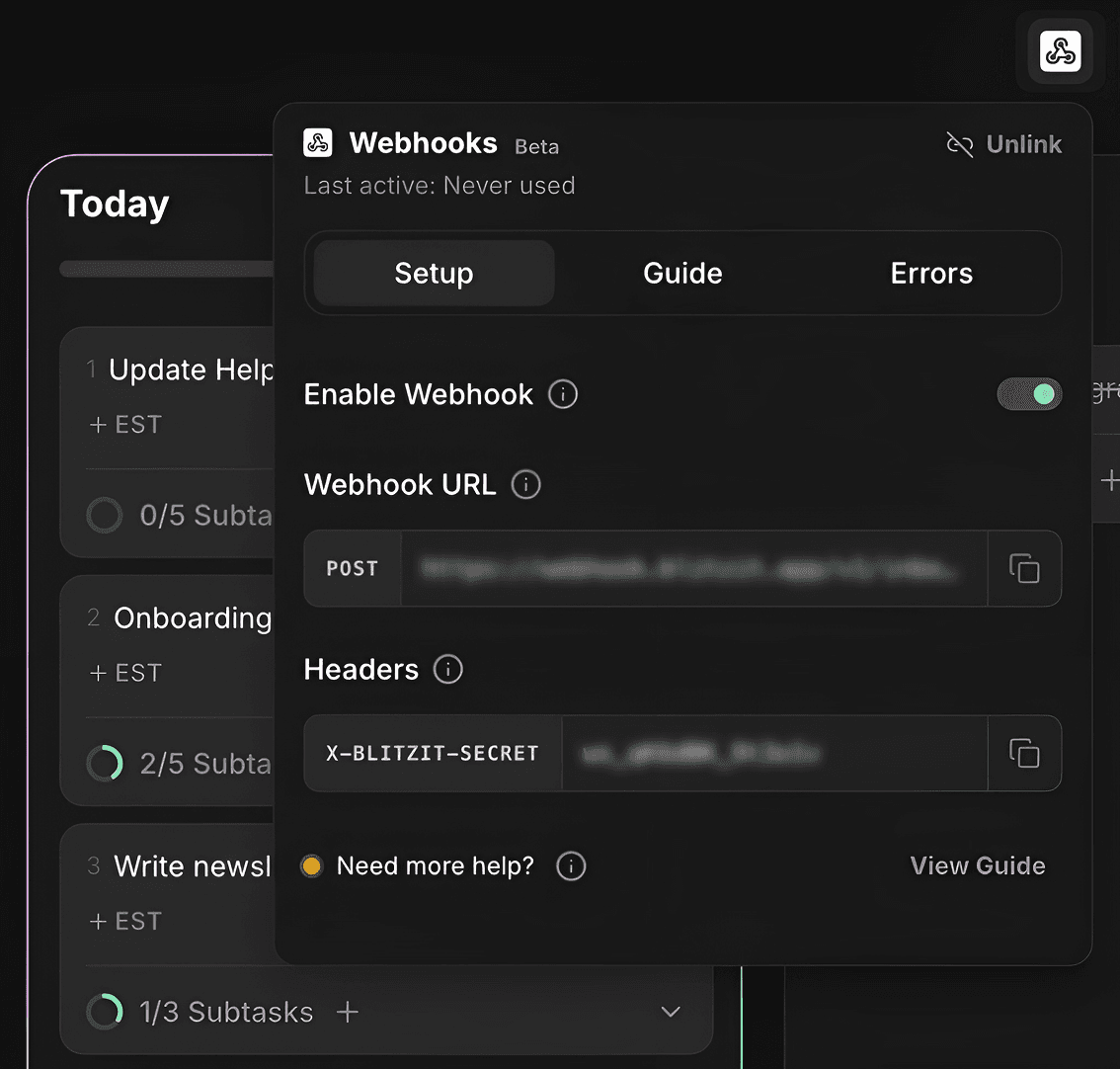
Copy the Webhook URL and Header with Signing Secret (blurred on screenshot). You’ll need these for IFTTT.
Note: Each Blitzit list has its own unique Webhook URL and Signing Secret.
Creating the Applet in IFTTT
Press the Create button.
You will see a page with If This and Then That building blocks.
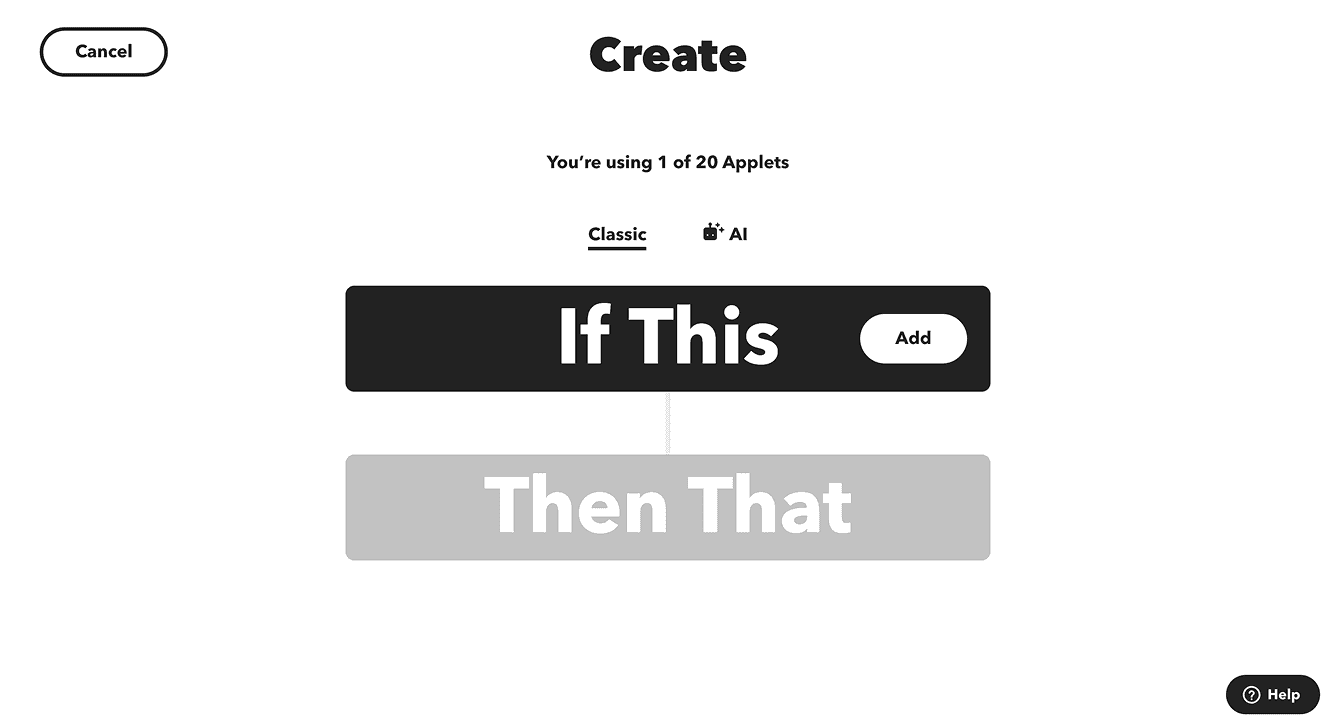
Click the Add button in the If This block to create the trigger.
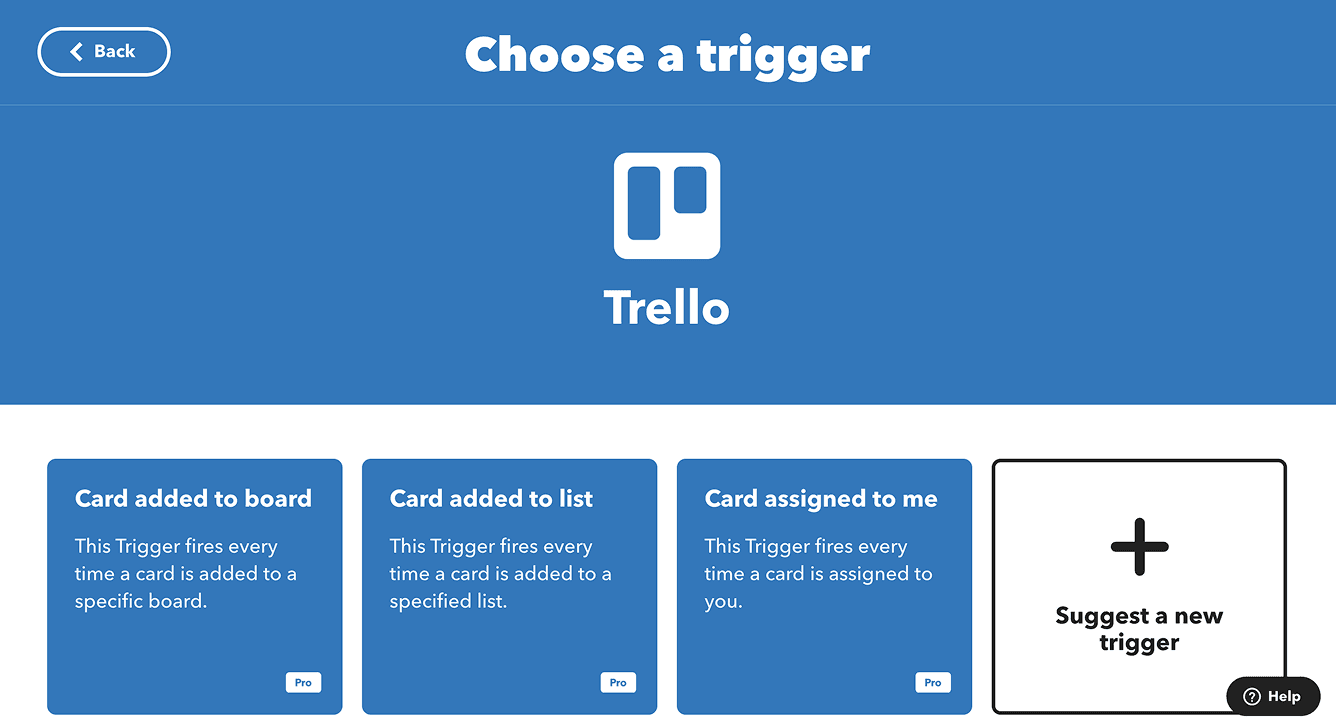
Search for the app you want to connect with Blitzit. For this guide, we’ll use Trello.
After selecting Trello, choose the trigger Card added to board.
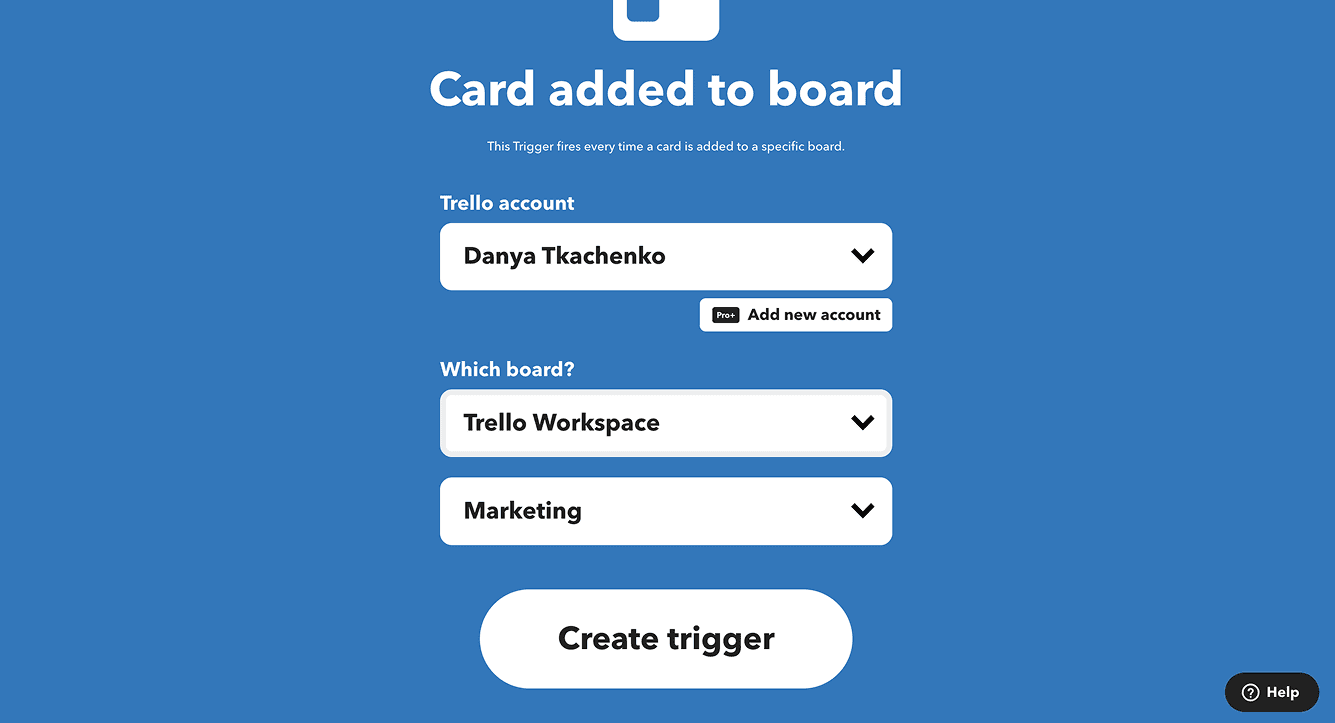
On the next page:
Connect your Trello account
Grant permissions to IFTTT
Select the board you want to connect
Then press Create Trigger.
Setting the Webhook Action
Click the Then That block to define the action.
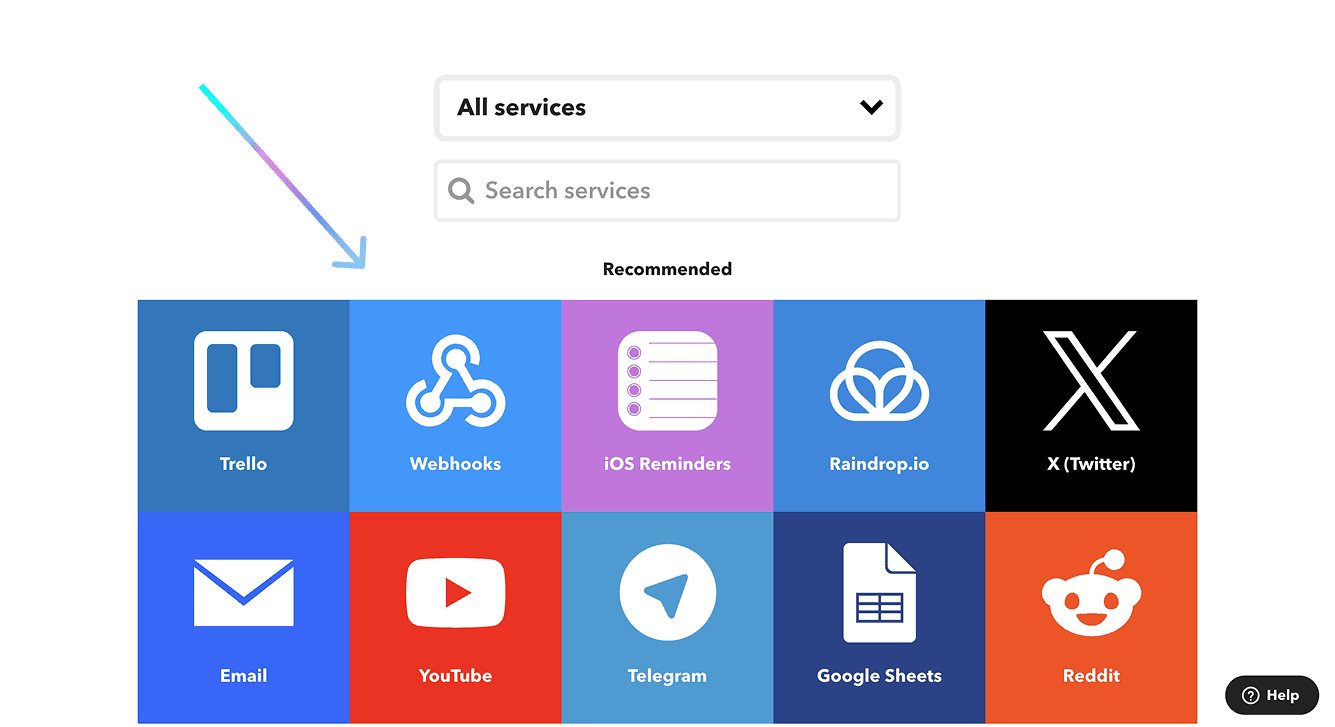
Search for Webhooks and select it.
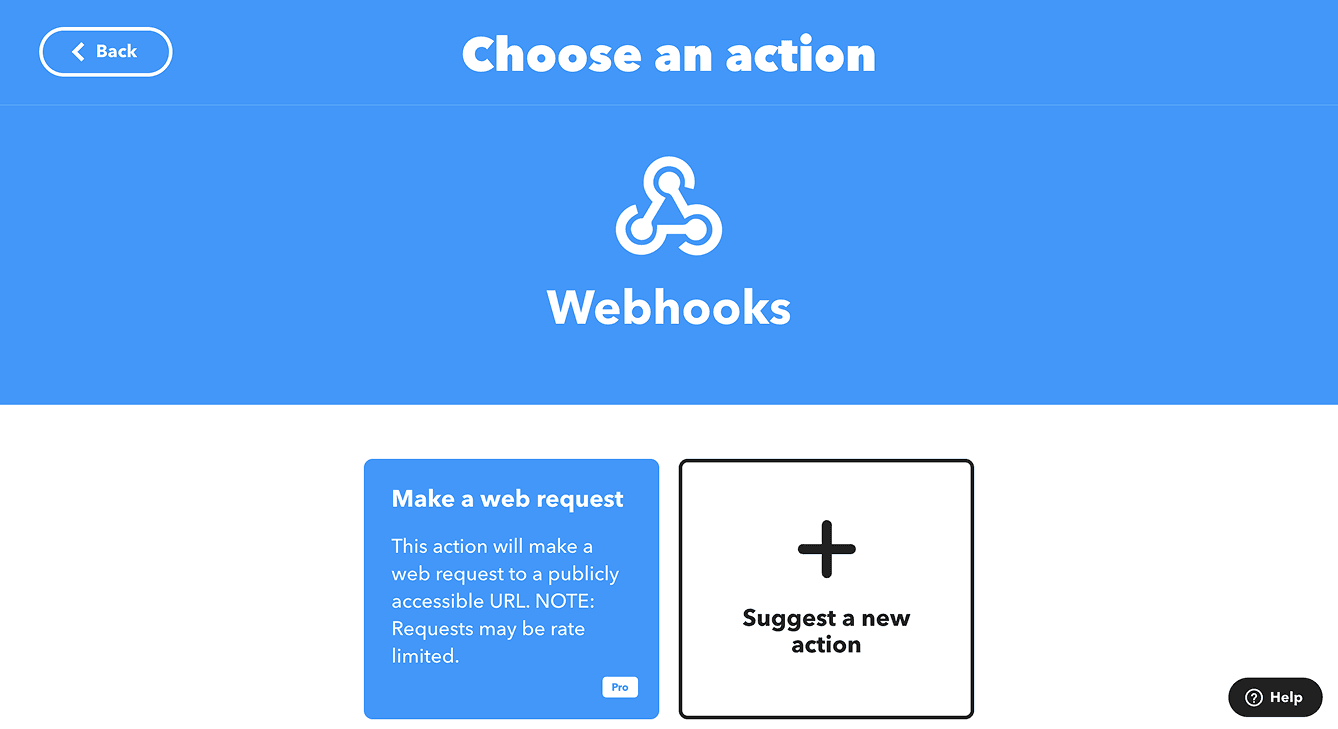
Choose Make a web request.
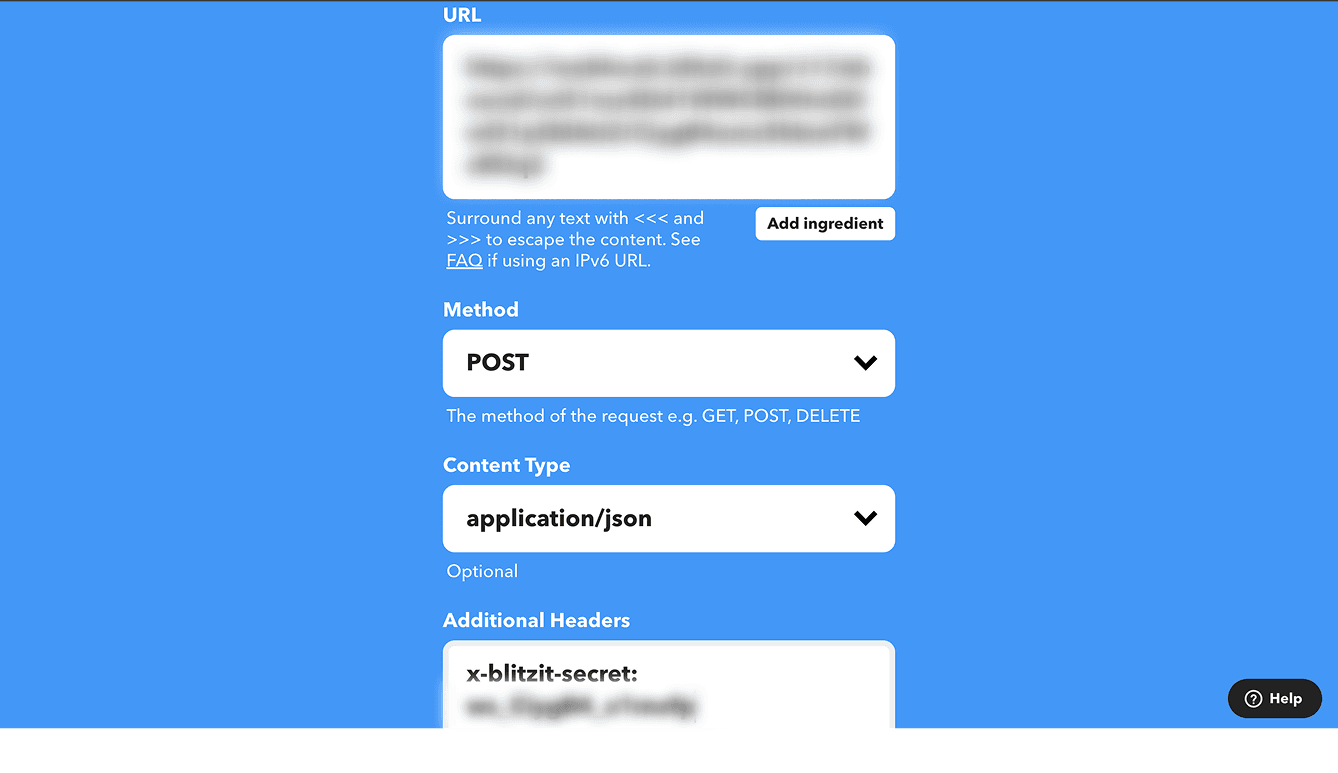
In the configuration page, set the following:
URL → Paste your Blitzit Webhook URL
Method → POST
Content Type → application/json
Additional Headers → x-blitzit-secret: *your signing secret from Blitzit*
Configuring the Request Body
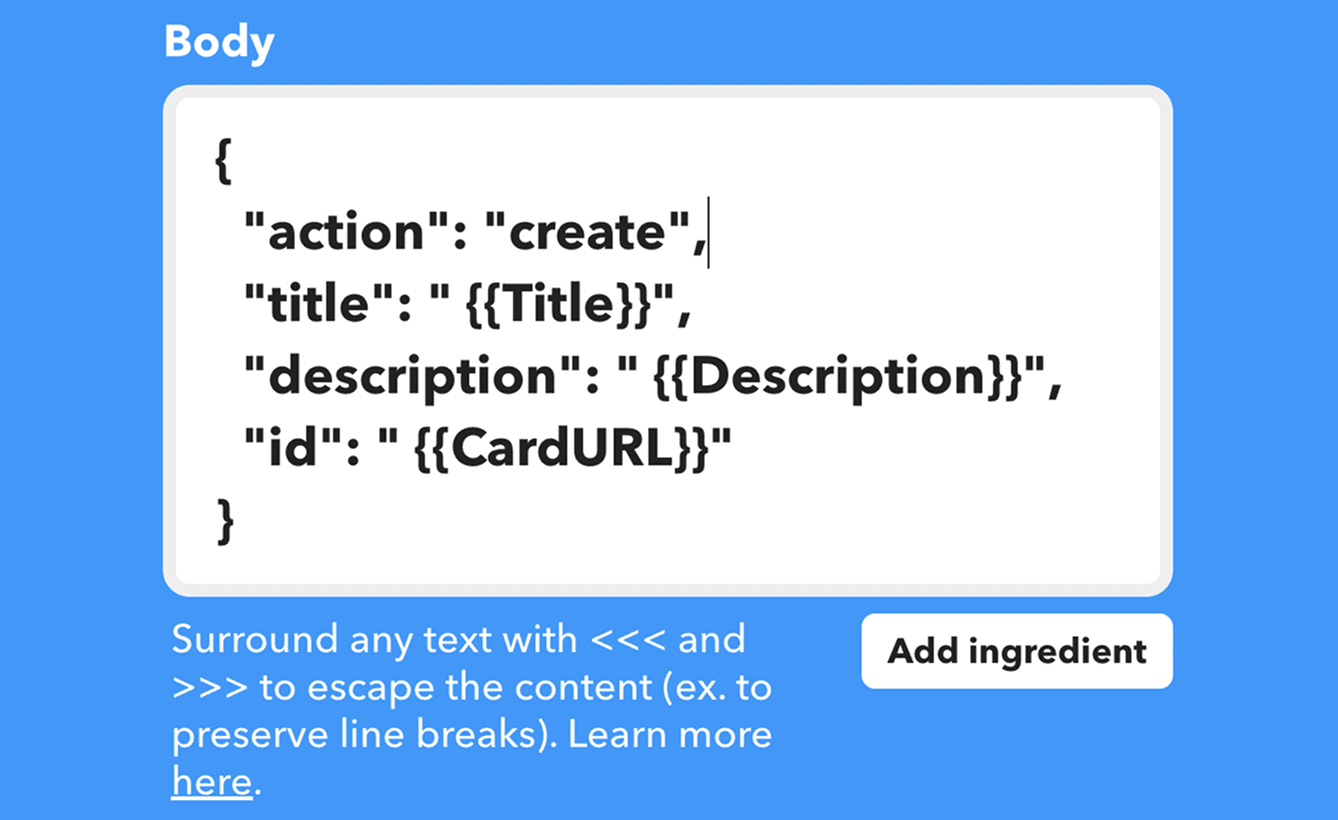
In the Body section, map Blitzit fields to Trello data.
Use the following template:
The first value (
"...") is the Blitzit parameterThe second value (
"{{...}}") is the Trello parameter
You can insert Trello fields by clicking Add ingredient.
Blitzit requires the following field:
Example configuration:
Note: Optional fields such as
urlorestimatecan also be included if needed. For a complete list of supported fields, open the Guide tab inside the relevant Blitzit list.
Finishing the Applet
Press Create action.
You will return to the building blocks page. Press Continue.
Enter a name for your Applet.
Press Finish.
You will now see the Applet page, where you can:
Review the configuration
Press Edit to modify settings
Access additional options
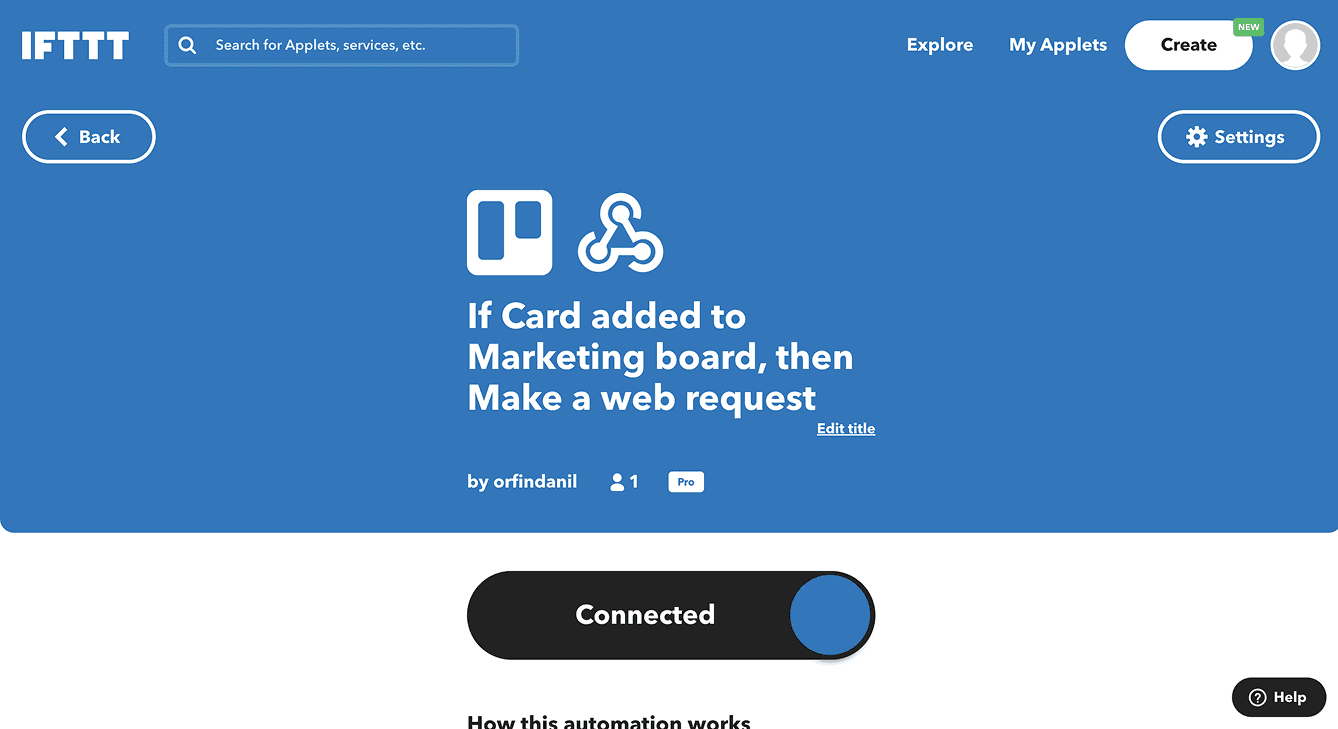
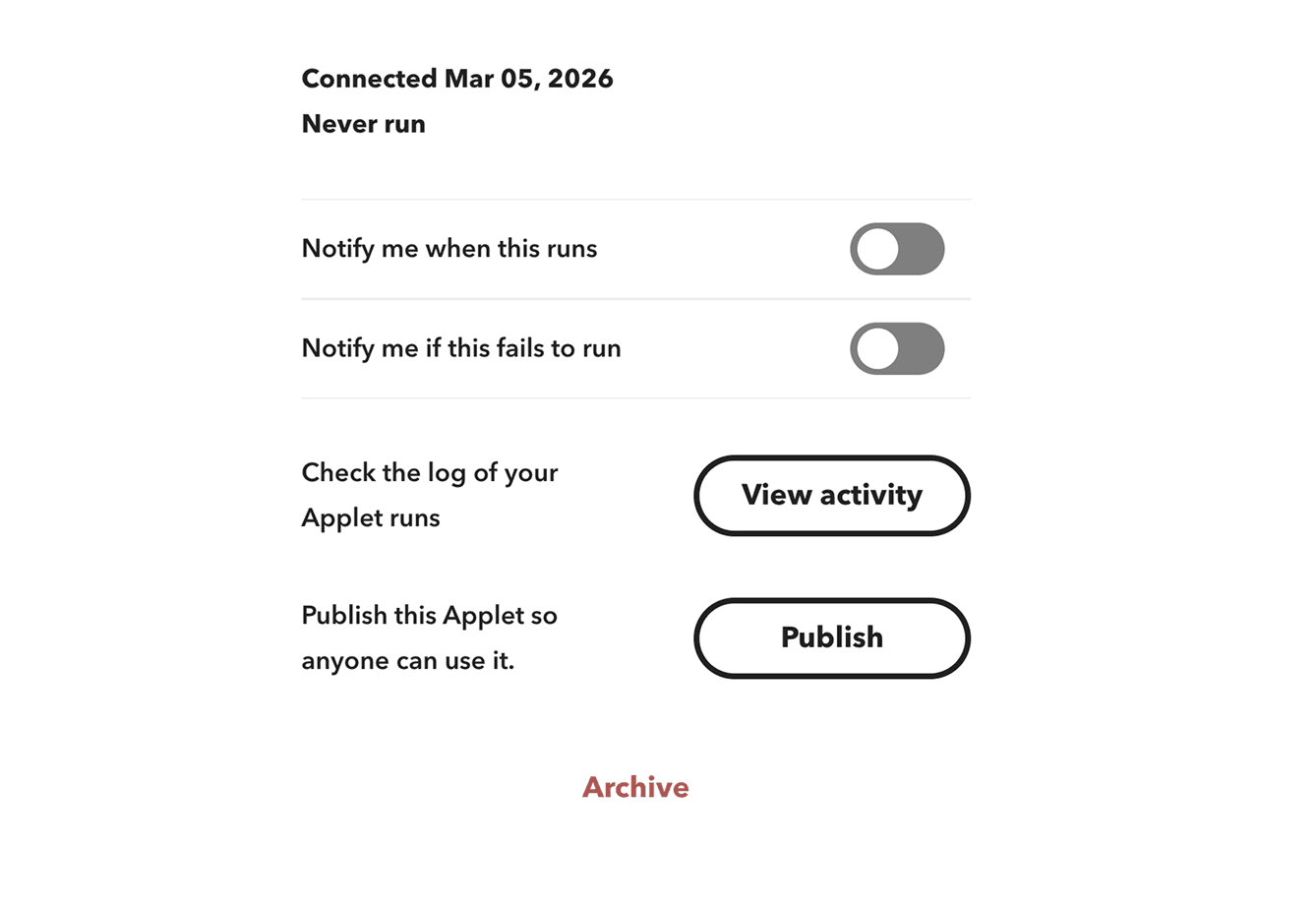
When a new card is created in Trello, it will appear as a task in Blitzit (this may take a short time).
Similar to this, you can connect webhooks with other apps.
Note: This integration is one-way only. We’re working on two-way support and appreciate your feedback.
Using the Integration
From the Home screen in Blitzit, open the Integrations dashboard (⋮⋮⋮ > Webhooks) to:
View all connected lists
Click View List to open any list
Click Connect New List to add more
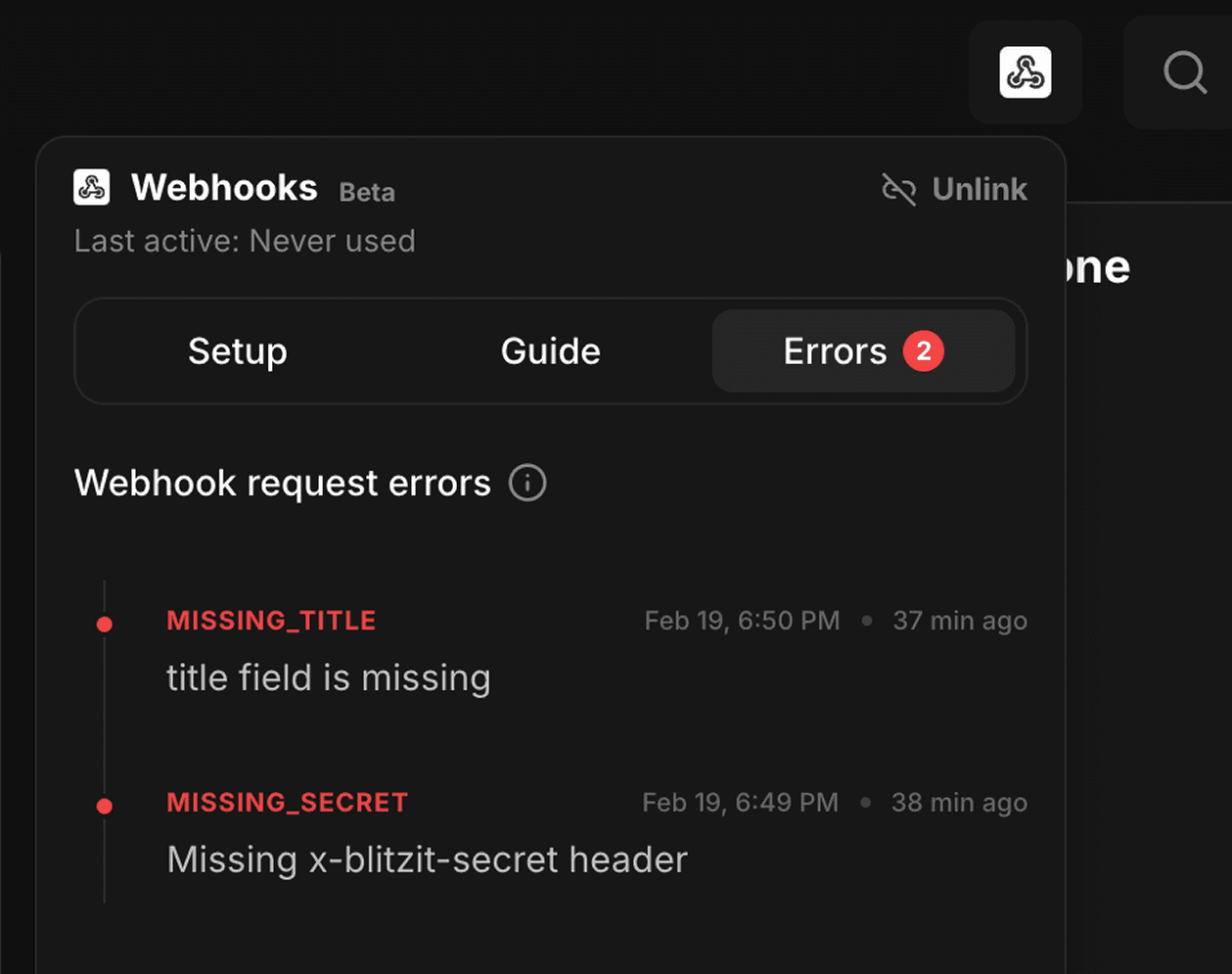
In any connected list, clicking the Webhooks icon (top right) opens settings with:
Toggle to enable or disable the webhook
Unlink button to disconnect the list completely
Guide tab showing payload field references
Errors tab showing issues (if any)