What Subtasks Are For
Subtasks let you break down larger tasks into small, actionable milestones. This helps make big tasks feel more manageable and gives you a clear visual sense of progress.
Adding a Subtask
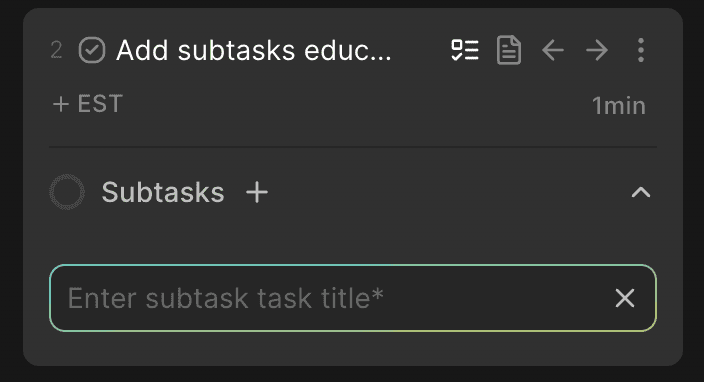
To add a subtask:
Hover over a task
Click the Subtasks icon
Type the subtask title
Press ENTER to save
Managing your subtasks
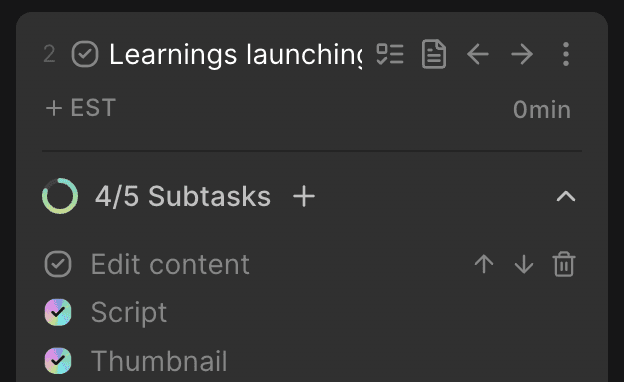
You can manage subtasks directly within the subtasks list:
Reorder subtasks using the up/down arrows
Edit a subtask title by clicking on it
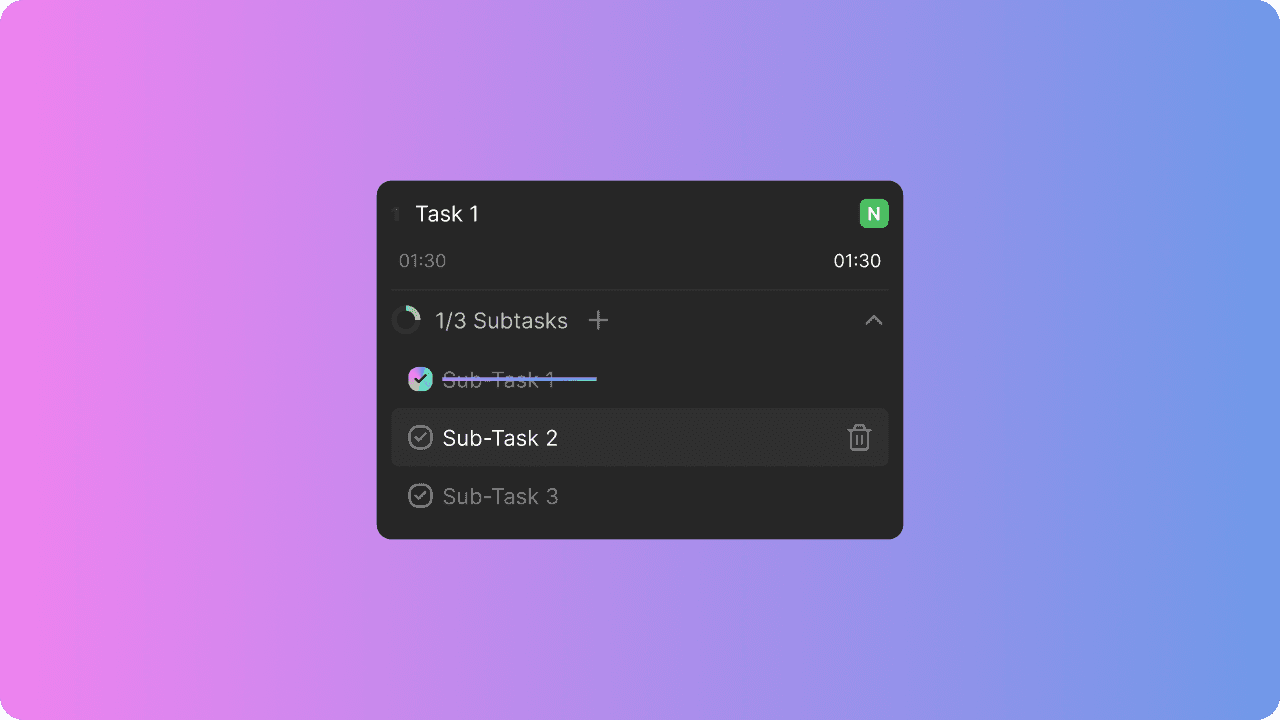
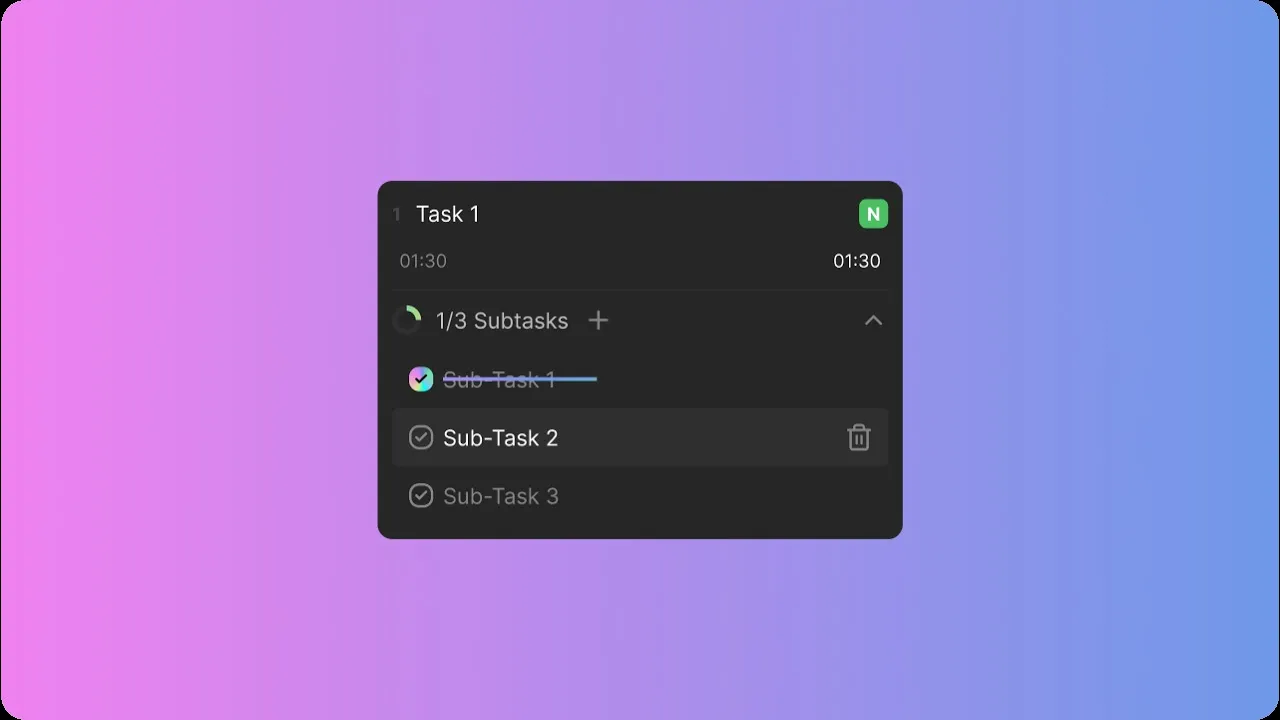
Delete a subtask by clicking the trash icon
Notion Integration Note
If you sync a Notion database that uses checkbox properties, you can convert those checkboxes into Blitzit subtasks with two-way sync.
Integrated subtasks cannot be deleted inside Blitzit — changes must be made in Notion.
Marking subtasks as Done
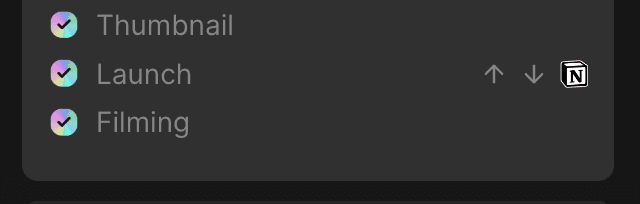
Click the checkbox next to any subtask to mark it as complete.
Each completed subtask fills the progress dial proportionally, based on the total number of subtasks.
Subtasks in Blitz mode time
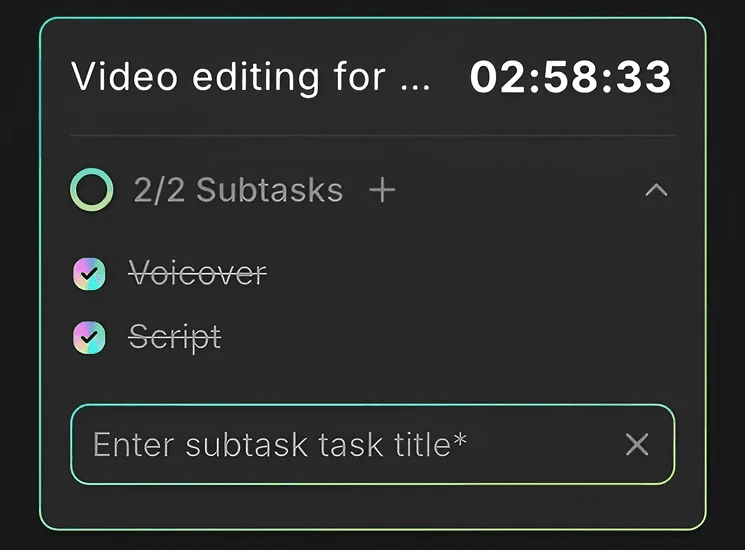
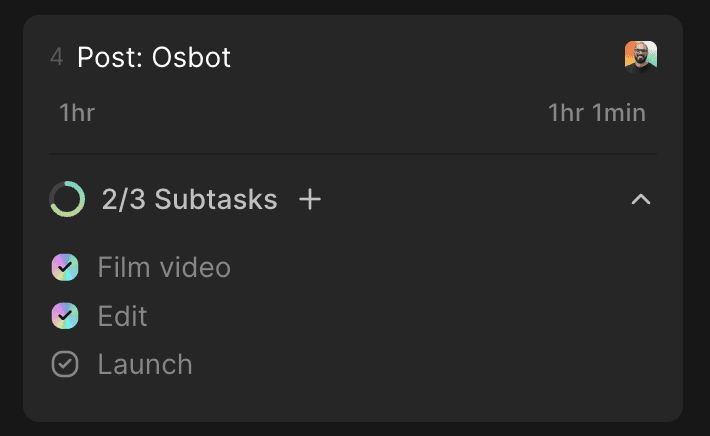
You can view and manage subtasks directly in the Live Task Timer during Blitz Mode.
In this view, you can:
See all existing subtasks
Mark subtasks as done and delete them
Edit subtask titles
Add new subtasks and change their order
All changes sync instantly with the main List view.