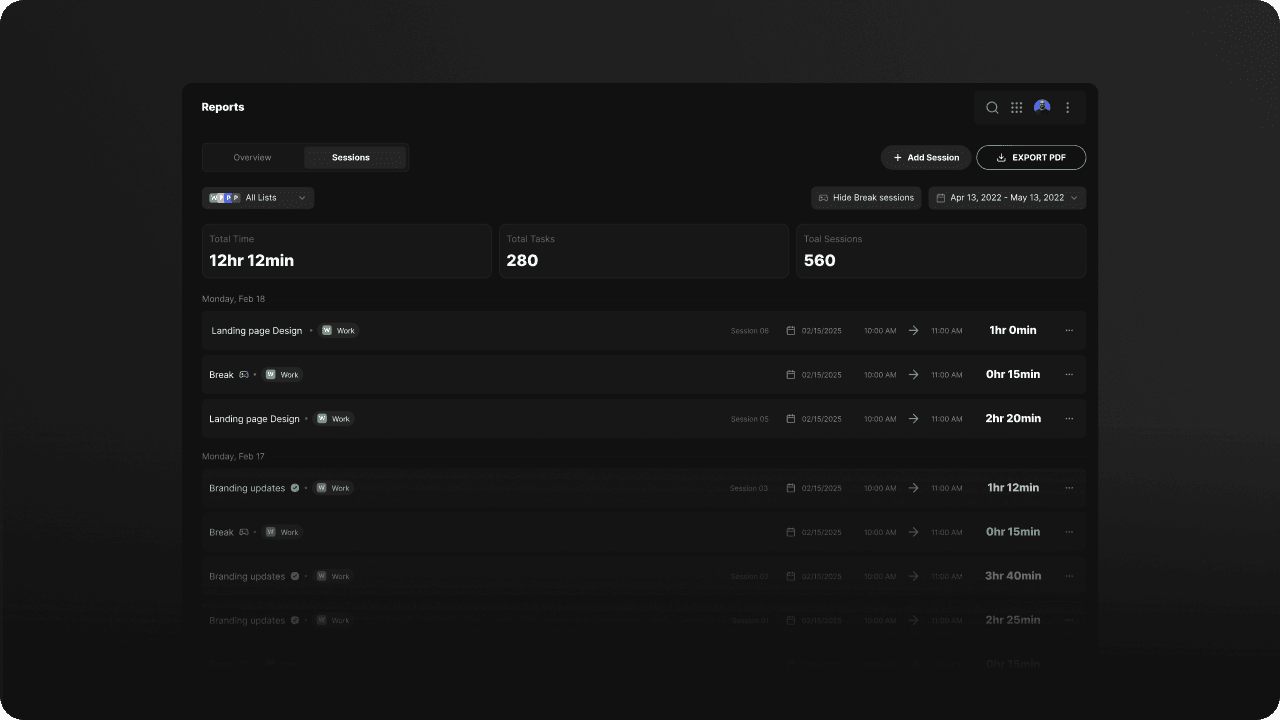
The Sessions section inside the Reports tab gives you a detailed, accurate view of how you spend time on tasks in Blitzit.
It brings together everything tracked through focus sessions (Blitz Mode) and lets you edit, review, and even add sessions manually — similar to professional time-tracking tools, but fully integrated into your workflow.
Overview of the Sessions Dashboard
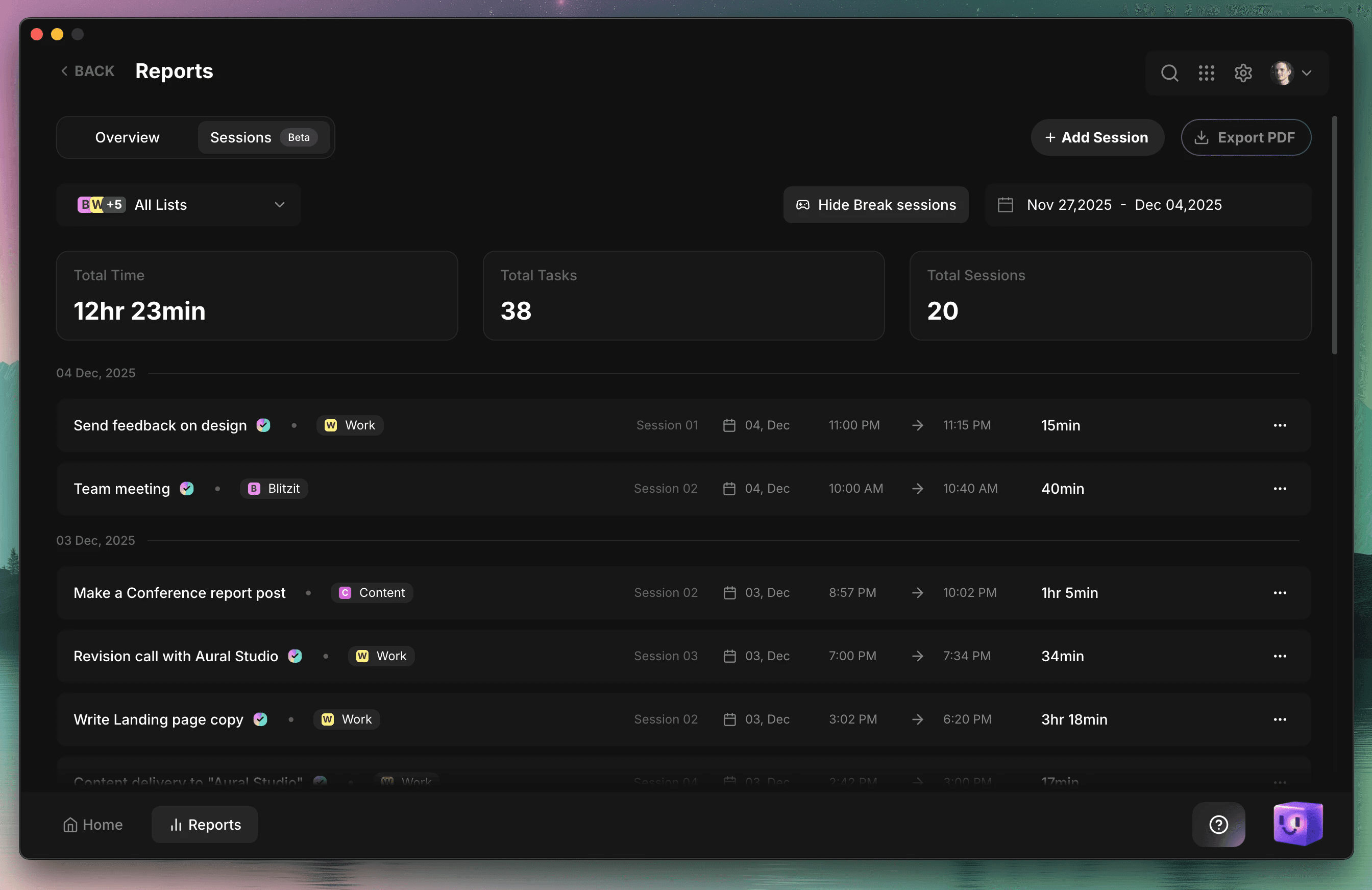
At the top of the Sessions screen, you’ll see your overall statistics for the selected date range:
• Total Time – the amount of time you spent in focused work sessions.
• Total Tasks – the number of tasks you worked on.
• Total Sessions – the total number of tracked sessions.
Filtering Options
Use the filters to shape the view of your report.
Lists – choose which task lists you want included, or select All Lists to view everything.
Hide/Show Break Sessions – toggle visibility of break segments recorded during longer sessions.
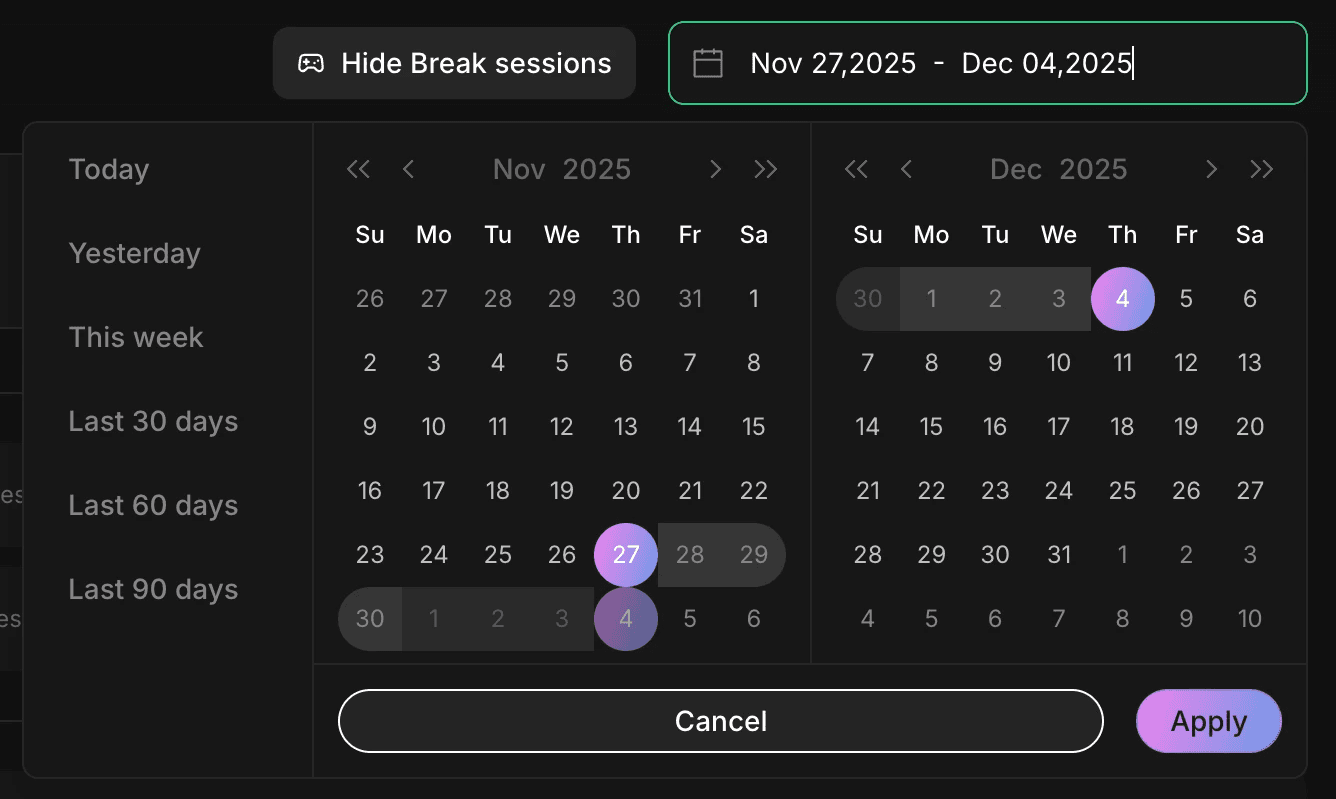
Date Range – select a time period using quick shortcuts or choosing a custom range from the calendar.
Viewing Your Sessions
Below the Total stats, you’ll see a chronological list of your sessions.
Each session entry includes:
The task name
The list the task belongs to
The session number (for example, Session 3 if it was your third focus session on that task)
The date you worked on it
The start and end time
The duration (hours/minutes)
This gives you a clear, timeline-based view of your actual work activity.
Editing Sessions
You can edit any recorded session to keep your time tracking accurate.
You can update:
Session date
Start time
End time
Total time spent
This is especially useful for correcting accidental over-tracking or adjusting manually added entries.
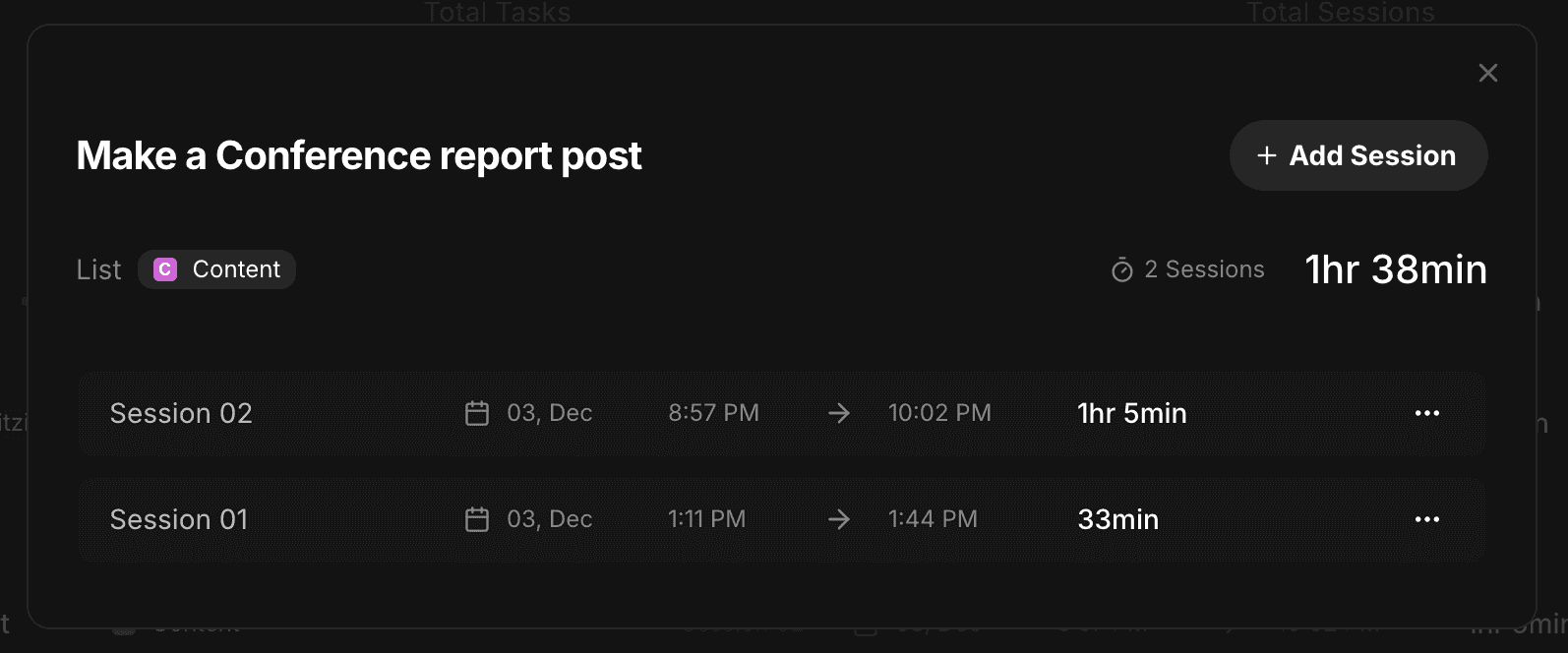
To edit a session, either open the menu (…) and select Edit, or click directly on any session detail (date, start/end time, or duration) to update it in place. If you want to remove a session, choose Delete from the menu.
The Edit menu also displays the full list of sessions associated with the task, so you can review and adjust each one.
Adding Sessions Manually
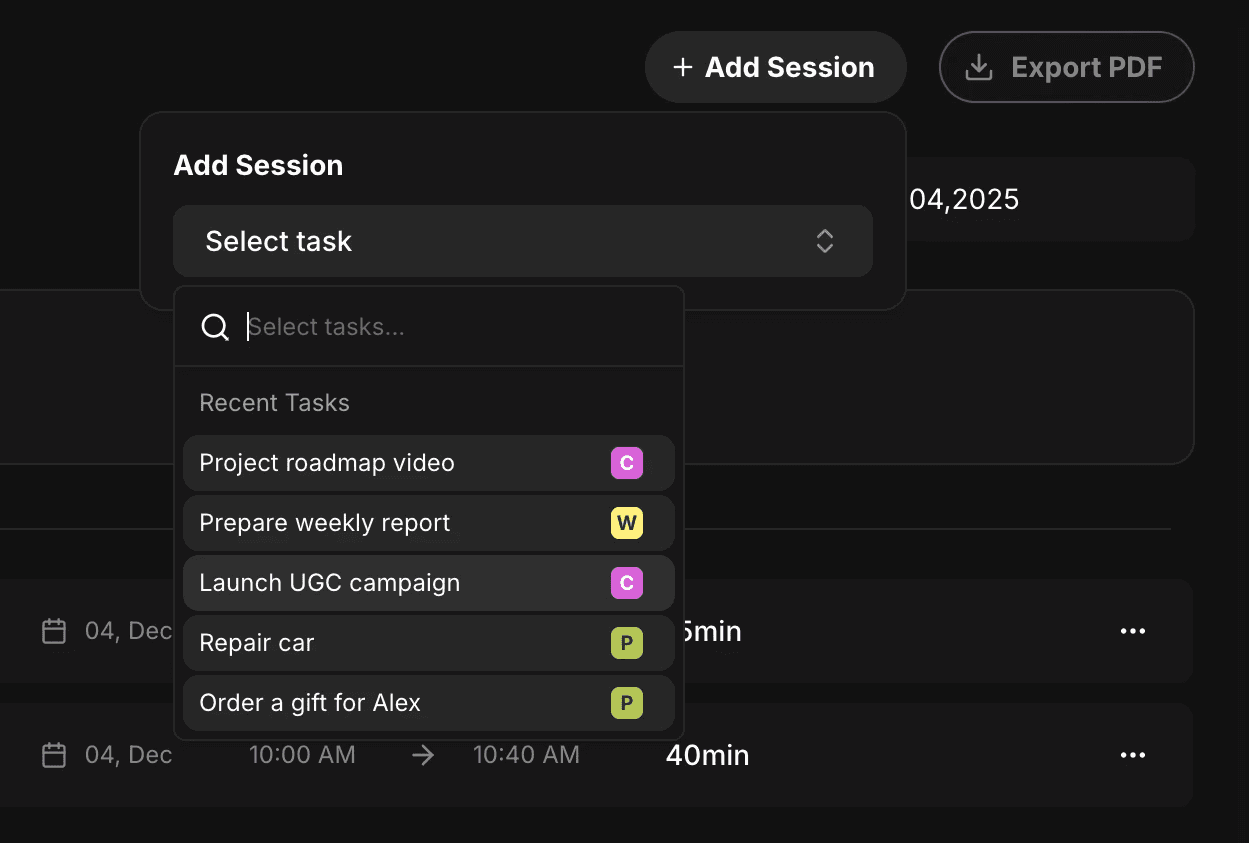
If you worked on a task without using Blitz Mode, you can add that session yourself.
Click + Add Session
Select the task
Enter the date
Add the start/end time (or total duration)
Click Add Session
Your session will appear instantly in the report.
Exporting a PDF Report
If you need to share your work summary — for example, with a client — you can download a clean PDF version.
Click Export PDF to generate:
Your selected date range
Session list
Total time, tasks, and session metrics
This creates a professional summary you can attach to invoices or personal logs.